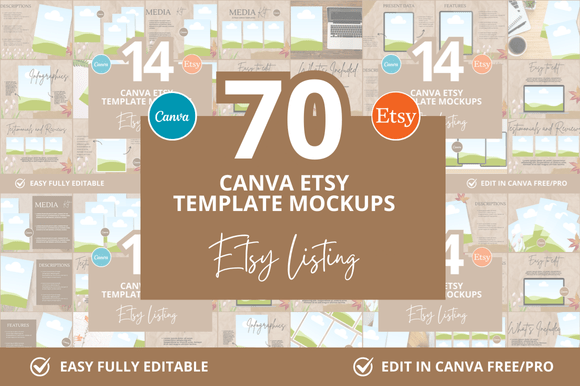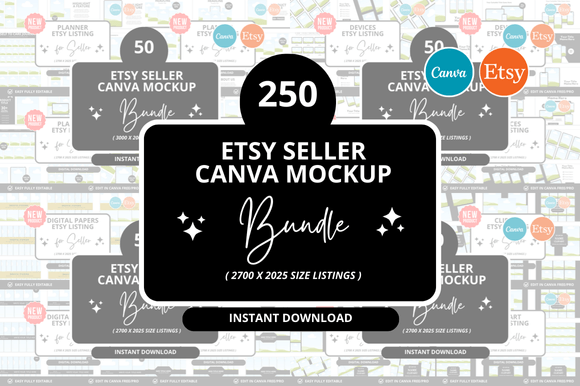
300 Etsy Listings Mockup Bundle: Save Time and Elevate Your Digital Shop
If you sell digital products on Etsy, you know that presentation is everything. A clean, professional mockup can mean the difference between a casual scroll and a sale. The 300 Etsy Listings Mockup Bundle promises to do the heavy lifting for you, delivering hundreds of ready-to-use Canva templates that make your listings look polished and trustworthy. But before you click "buy" or start designing, there are a few things you should know. Many sellers jump into these bundles without checking for flexibility, quality traps, or real time-saving features—and they end up frustrated with results that don't match their brand.
This article walks you through the most common mistakes sellers make when using a mockup bundle, what to look for before you download, and how to get the most out of your purchase. Whether you're a beginner just opening your shop or an experienced seller looking to streamline your workflow, these insights will help you avoid wasted effort and create listings that actually convert.
What the 300 Etsy Listings Mockup Bundle Offers
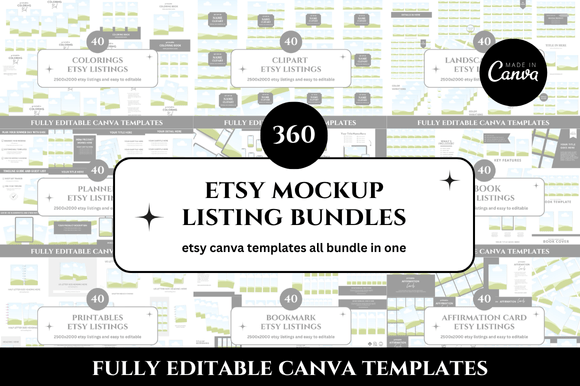
At its core, this bundle is a collection of 300 customizable Canva mockup templates designed specifically for Etsy listings. You get frames, banners, square listings, shop covers, and more—all in one downloadable set. The idea is simple: instead of designing each listing from scratch, you open a template, drop in your product image or screenshot, adjust the text if needed, and export. The bundle also includes bonus freebies that add extra value, such as additional frames or decorative elements.
For anyone selling digital planners, printables, templates, or other downloadable goods, having a consistent visual style across your shop builds trust and makes your brand memorable. This bundle aims to give you that consistency without requiring advanced design skills. However, the real value lies in how you choose, customize, and apply these templates—and that's where many sellers go wrong.
Mistake #1: Not Checking if the Templates Are Truly Customizable
One of the biggest misunderstandings about mockup bundles is assuming every template will be easy to edit. Some bundles come with locked elements, fixed colors, or complicated layer structures that make customization more time-consuming than starting from scratch.
When you open a template in Canva, you should be able to change the background color, swap out the device frame, adjust the text, and move elements around without breaking the design. If a template requires you to manually resize every element or hunt for hidden layers, it defeats the purpose of saving time.
What to Look For
- Editable text and placeholders: Look for clearly labeled sections where you can drop in your own screenshots or images.
- Color palette controls: Ideally, the template uses Canva’s color style features so you can change the entire look with one click.
- Bonus freebies that add flexibility: Extra frames, backgrounds, or decorative elements can help you adapt a template to different seasons or promotions.
Before buying, check the product description for keywords like "fully editable," "customizable colors," or "changeable backgrounds." If the listing is vague, reach out to the seller or look for preview images that show multiple variations of the same template.
Mistake #2: Ignoring the Mockup Dimensions and Aspect Ratios
Etsy listing photos come in specific sizes, and square images (usually 1:1 ratio) are the most common for thumbnails. But your shop covers, banners, and promotional graphics may require different dimensions. Many sellers buy a bundle and later realize the templates only work for square listings, leaving them without options for announcements or social media posts.
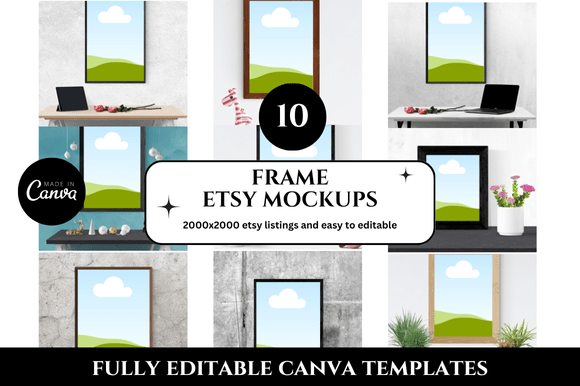
The 300 Etsy Listings Mockup Bundle includes a variety of formats, but you should verify that the set covers what you actually need. If you sell printables, you may want templates that show your product displayed on a desk, tablet, or wall. If you offer digital planners, you might prefer laptop or phone mockups. A good bundle will have a mix, but it's your job to confirm before buying.
How to Avoid This Mistake
- Review the product photos carefully—they often show a sampling of the included formats.
- Read the description for mentions of "square listings," "banners," "shop covers," and "social media sizes."
- If you need a specific ratio (like 2:3 for a vertical listing), check if the bundle includes that option.
A quick test: imagine your most common listing type. Does the bundle offer a template that directly fits that format? If not, you might end up spending extra time cropping or stretching, which reduces image quality.
Mistake #3: Overlooking the "Instant Download" and "Canva Link" Logistics
This bundle is marketed as "Canva Instant Download" and "Canva Link Templates." That means you will receive a link or a set of links that open in Canva, rather than individual files you edit offline. For many sellers, this is perfect—you can start designing immediately without installing software. But there are a few pitfalls.
First, not all Canva accounts are equal. The free version of Canva includes most editing tools, but some premium elements (like certain fonts, graphics, or stock photos) may require a Canva Pro subscription. If a template uses Pro-only elements, you may see a watermark or be unable to edit those parts without upgrading.
Second, the "instant download" might be a PDF or text file containing the links, not the templates themselves. Make sure you are comfortable with Canva’s interface and that you have a stable internet connection while working.
Practical Tips
- Check the listing for a note about "Canva Pro required" or "Free Canva compatible."
- If you are on a free plan, look for bundles that explicitly state they use only free elements.
- Save the links in a folder immediately after purchase. Some links may expire after a certain period or be limited to a number of uses.
By understanding the delivery method upfront, you avoid the frustration of trying to open a template and discovering you need a paid subscription.
Mistake #4: Using Too Many Different Mockup Styles in One Shop
Variety is great, but inconsistency can hurt your brand. The 300 Etsy Listings Mockup Bundle gives you dozens of styles—flat lays, device frames, angled shots, and more. The temptation is to use a different mockup for every listing because you have so many options. But this creates a disjointed shop appearance.
Customers scrolling through your listings should feel a cohesive visual style. If one listing shows a product on a marble desk, another on a wooden table, and a third on a laptop screen with a bright background, your store looks messy. This can reduce trust and make it harder for shoppers to recognize your brand.
A Better Approach
- Choose 2–3 mockup styles that work well with your product type and stick with them for the majority of your listings.
- Use different templates for seasonal promotions or special categories, but keep the core look consistent.
- Create a "master template" by saving your preferred colors, fonts, and layout in Canva. Then you can quickly apply changes to all listings.
Remember, the goal is not to use all 300 templates at once, but to pick a set that represents your brand effectively and reuse them across your shop.
Mistake #5: Forgetting to Resize for Different Etsy Features
Etsy allows you to add up to 10 photos per listing, and each photo can serve a different purpose. The first photo (the thumbnail) is the most important, but the others can show close-ups, size comparisons, or the product in use. Many sellers only create one mockup per listing and ignore the rest.
The 300 Etsy Listings Mockup Bundle often includes templates for secondary images, such as angled views, detail shots, and lifestyle photos. If you skip these, you miss the chance to show more value and answer customer questions before they click away.
How to Leverage Multiple Templates
- Use the first template to show the product in a clean, recognizable way (for example, a laptop mockup for a digital planner).
- Use a second template to display a close-up of key features or a sample page.
- Use a third template to show the product in a lifestyle setting—maybe on a desk with a coffee cup, or held by a hand.
By utilizing several templates from the bundle, you create a richer listing without extra design work. Just make sure the templates share a consistent color scheme and lighting style so they feel part of a set.
Mistake #6: Not Optimizing Templates for Mobile Viewers
Most Etsy shoppers browse on their phones. A mockup that looks beautiful on a desktop monitor might appear cluttered or tiny on a mobile screen. Text that is readable at full size may become illegible when scaled down. This is a subtle but crucial detail that many sellers overlook.
When you are working with a template from the bundle, zoom out to see how it looks at a small thumbnail size. If the product is too small or the background is too busy, choose a different layout. Clean, minimal mockups generally perform better on mobile because they let the product stand out.
Quick Checks Before Publishing
- View your mockup on a phone or use Canva's preview feature to see it at listing size.
- Avoid tiny text or fine details that will be lost.
- Make sure the product itself takes up at least 60-70% of the frame.
If a template from the 300 Etsy Listings Mockup Bundle has too much decorative space around the product, consider cropping or moving the product closer to the center before exporting.
Mistake #7: Ignoring the Bonus Freebies
Many bundles include bonus freebies such as extra frames, graphic elements, or alternative backgrounds. Sellers often download the main templates and forget about the extras. That is a missed opportunity. These freebies can help you create variations or update your shop for holidays without buying a new bundle.
Set aside 15 minutes after your purchase to explore the bonus files. You might find a set of floral frames that can be used for spring promotions, or a collection of shadow overlays that add depth to your mockups. Even small additions can refresh your shop's look and make your listings feel current.
How to Use Bonus Elements Effectively
- Create a "theme pack" for each season by combining base templates with bonus elements.
- Use bonus frames to highlight customer reviews or special offers in your listing images.
- Keep a separate folder in Canva for all bonus assets so you can quickly access them later.
The bonus freebies are there to give you more value, so take full advantage of them to extend the life of your bundle.
What to Check Before You Buy a Mockup Bundle
Before you hit "Add to Cart," take a few minutes to evaluate the bundle against your real needs. The 300 Etsy Listings Mockup Bundle may be exactly what you need, but only if it aligns with your workflow and brand.
Key Questions to Ask Yourself
- Does the bundle include templates for the specific products I sell? (Planners, printables, art prints, etc.)
- Are the templates designed for my level of Canva experience? (Look for terms like "beginner friendly.")
- Can I easily change colors and fonts to match my brand?
- Are there enough square listings for my main thumbnails?
- Does the bundle offer a money-back guarantee in case it doesn't work for me?
If you answer yes to most of these, the bundle is likely a good fit. If you are unsure, look for reviews from other sellers who have similar product types. Real feedback from people in your niche is often more helpful than a polished product description.
Final Thoughts: Make the Bundle Work for You
The 300 Etsy Listings Mockup Bundle is a powerful tool when used correctly. It can save you hours of design time, give your shop a professional look, and help you stand out in a crowded marketplace. But like any tool, its effectiveness depends on how you use it. Avoid the common mistakes of ignoring customization options, skipping dimension checks, and overloading your shop with inconsistent styles.
Instead, take a deliberate approach: choose a few templates that reflect your brand, optimize them for mobile, and use the bonus freebies to keep your listings fresh. By being selective and intentional, you turn a large bundle into a focused, efficient resource that supports your shop's growth.
Happy designing—and here is to listings that not only look great but also convert.